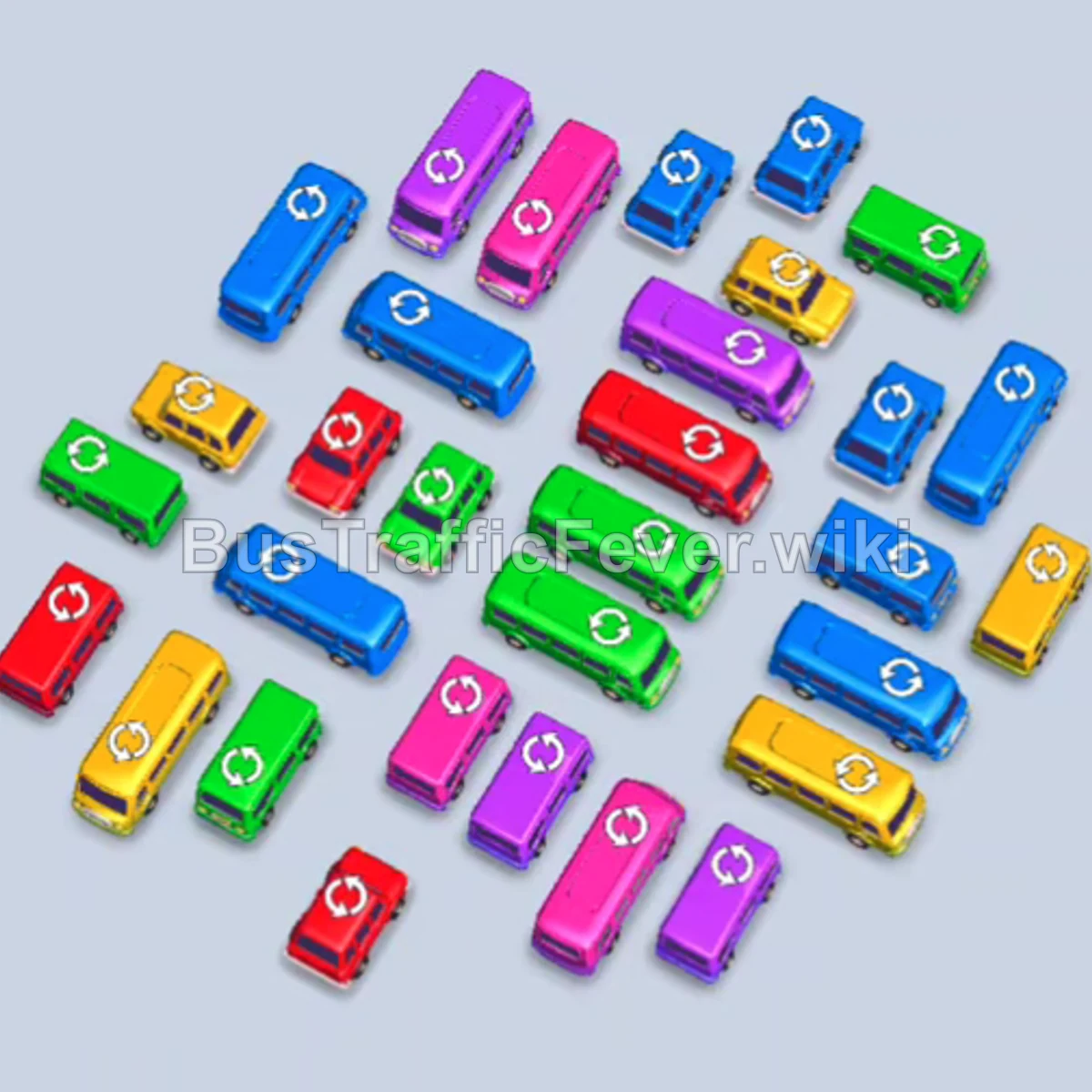
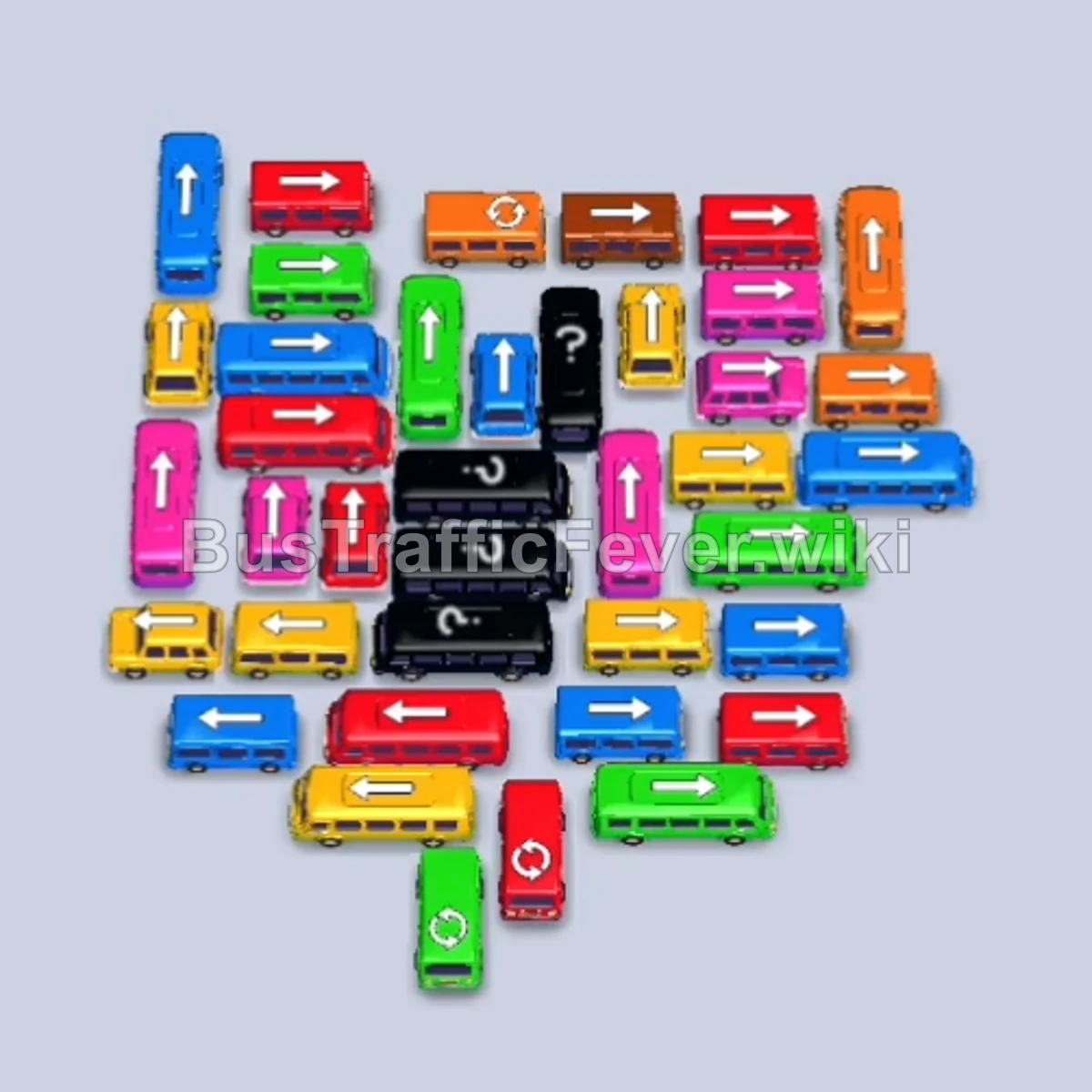
Bus Traffic Fever Level 212 Answer & Walkthrough Solution

Quick answer
To beat Level 212, you must clear the tightly packed parking grid by strategically picking vehicles whose colors match the front of the passenger queue while preventing parking slot gridlock. First, release the free vehicles along the bottom and perimeter edges to create breathing room. Next, untangle the vertical and horizontal columns in the center to free up larger buses, and finally process the remaining nested buses row by row as the passenger line shifts color.
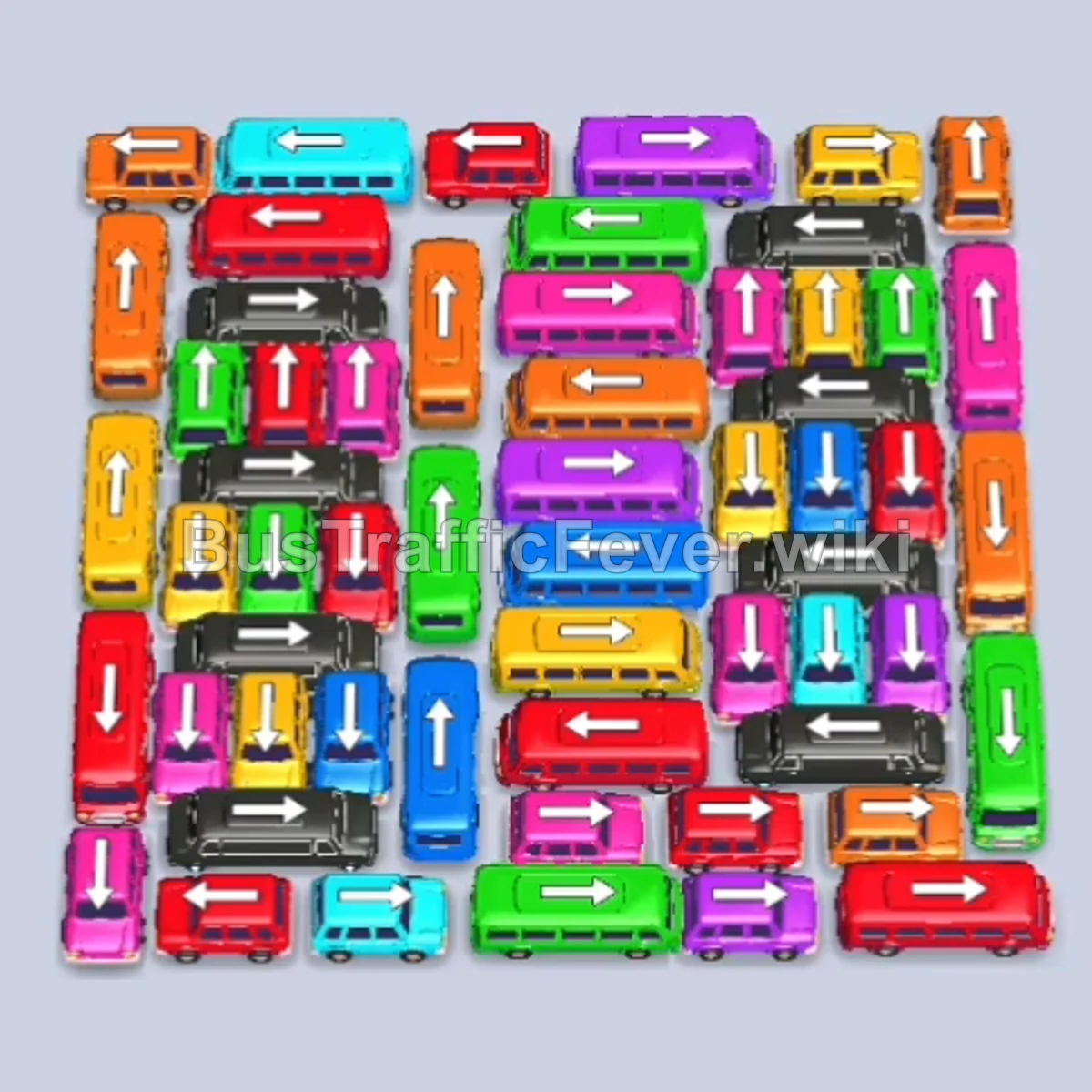
Step-by-step solution
Phase 1: Opening the Perimeter & First Departures
- Tap the Red bus at the bottom-right corner to clear the exit path.
- Tap the tall Red bus on the far-left vertical column to head into the first parking slot and absorb red passengers.
- Tap the Orange bus at the bottom-center to pull into the second parking slot for incoming orange passengers.
- Tap the White bus at the bottom-left corner to free the lower corridor.
- Tap the Red bus at the bottom-left to finish filling and clearing the red queue.
- Tap the Pink bus at the bottom-left.
- Tap the Cyan bus along the top-left edge to occupy a slot for cyan passengers.
- Tap the Pink bus in the lower-middle lane.
- Tap the Orange bus along the bottom row to park and take orange passengers.
- Tap the Red bus in the left column.
- Tap the Green bus near the center to handle the incoming green passenger group.
- Tap the Orange bus in the middle row.
Phase 2: Unlocking the Inner Grid & Center Lanes
- Tap the Red bus on the lower-left side.
- Tap the small Orange bus near the bottom-center.
- Tap the Red bus near the lower-center column to clear red passengers.
- Tap the Green bus along the upper-left lane.
- Tap the Orange bus in the lower-right area.
- Tap the Orange bus in the center row.
- Tap the Black bus on the right side.
- Tap the Orange bus at the bottom-right.
- Tap the Red bus on the lower-middle right.
- Tap the White bus at the bottom center.
- Tap the Pink bus in the lower-right cluster.
- Tap the Yellow bus along the top-right row.
- Tap the Yellow bus in the upper-right section.
- Tap the Yellow bus in the middle area.
- Tap the Orange bus in the right column.
Phase 3: Clearing the Dense Center & Transitioning Queues
- Tap the Purple bus near the top of the central column.
- Tap the Green bus in the middle-left lane.
- Tap the Orange bus near the center.
- Tap the Yellow bus at the top right.
- Tap the Green bus in the center row.
- Tap the Cyan bus at the top of the left section.
- Tap the Black bus on the middle-right.
- Tap the Yellow bus at the top-right corner.
- Tap the Yellow bus in the center lane.
- Tap the Pink bus near the middle-left cluster.
- Tap the Red bus on the left.
- Tap the Green bus in the left vertical chute.
- Tap the Purple bus on the right.
- Tap the Purple bus in the right-center row.
- Tap the Purple bus in the middle column.
- Tap the Red bus in the center.
- Tap the Purple bus in the right section.
Phase 4: Final Sequence & Grid Cleanup
- Tap the Black bus in the right lane.
- Tap the Black bus in the center lane.
- Tap the Blue bus near the center.
- Tap the Yellow bus in the middle row.
- Tap the Red bus on the far left.
- Tap the Green bus at the bottom of the board.
- Tap the Blue bus in the lower-center section.
- Tap the Blue bus on the left side.
- Tap the Red bus on the left column.
- Tap the Black bus on the lower-left.
- Tap the Green bus on the upper-left.
- Tap the Green bus in the left column.
- Tap the Orange bus in the center row.
- Tap the Pink bus on the lower-right.
- Tap the Red bus in the center-right row.
- Tap the Black bus on the right side.
- Tap the Cyan bus in the lower-right area.
- Tap the Orange bus at the bottom-right.
- Tap the Black bus in the center.
- Tap the Yellow bus on the right.
- Tap the Green bus in the center column.
- Tap the Red bus in the center lane.
- Tap the Green bus on the left.
- Tap the Blue bus in the middle row.
- Tap the Black bus in the left column.
- Tap the Blue bus on the right side.
- Tap the Red bus in the center.
- Tap the Yellow bus at the upper-right edge.
- Tap the Purple bus in the center row.
- Tap the Black bus to clear the final vehicle and finish the level.
Tips for success
- Monitor the Front of the Line: Always match the vehicle color to the passengers currently waiting at the barrier so buses leave immediately and free up parking bays.
- Keep at Least 2 Free Parking Slots: Never let all parking slots fill with non-matching colors; gridlock happens quickly if an urgent blocking vehicle has nowhere to park.
- Prioritize High-Capacity Buses: Clearing buses (40 capacity) removes huge blocks of queued passengers at once and opens up large maneuvering corridors on the board.
More Bus Traffic Fever help
Continue with the Level 211 walkthrough, review the core rules in how to play Bus Traffic Fever, or browse all level solutions to jump to another number.